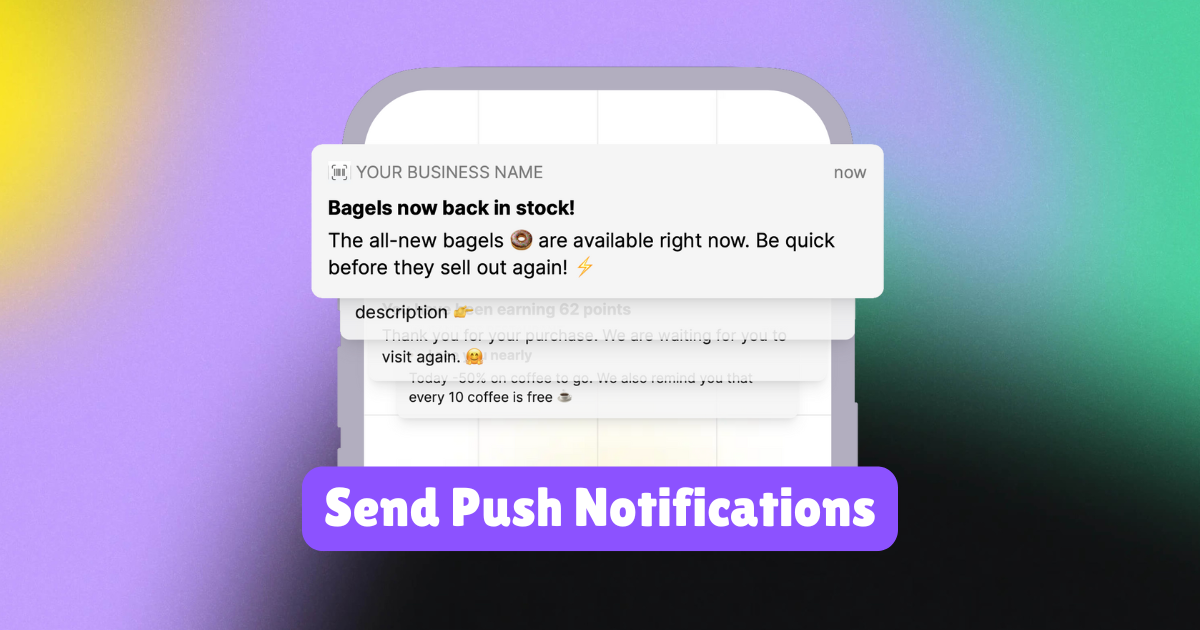
Push notifications are an effective tool for engaging your customers, delivering timely updates straight to their devices. This guide will show you how to send notifications to all customers, target specific segments, and reach individual customers with tailored messages.
Sending Push Notifications to All Customers
Learn how you can send push notification message to all customers connected to a specific card.
LoyaltyPal > Left-Hand Menu (mailings) > Send Push
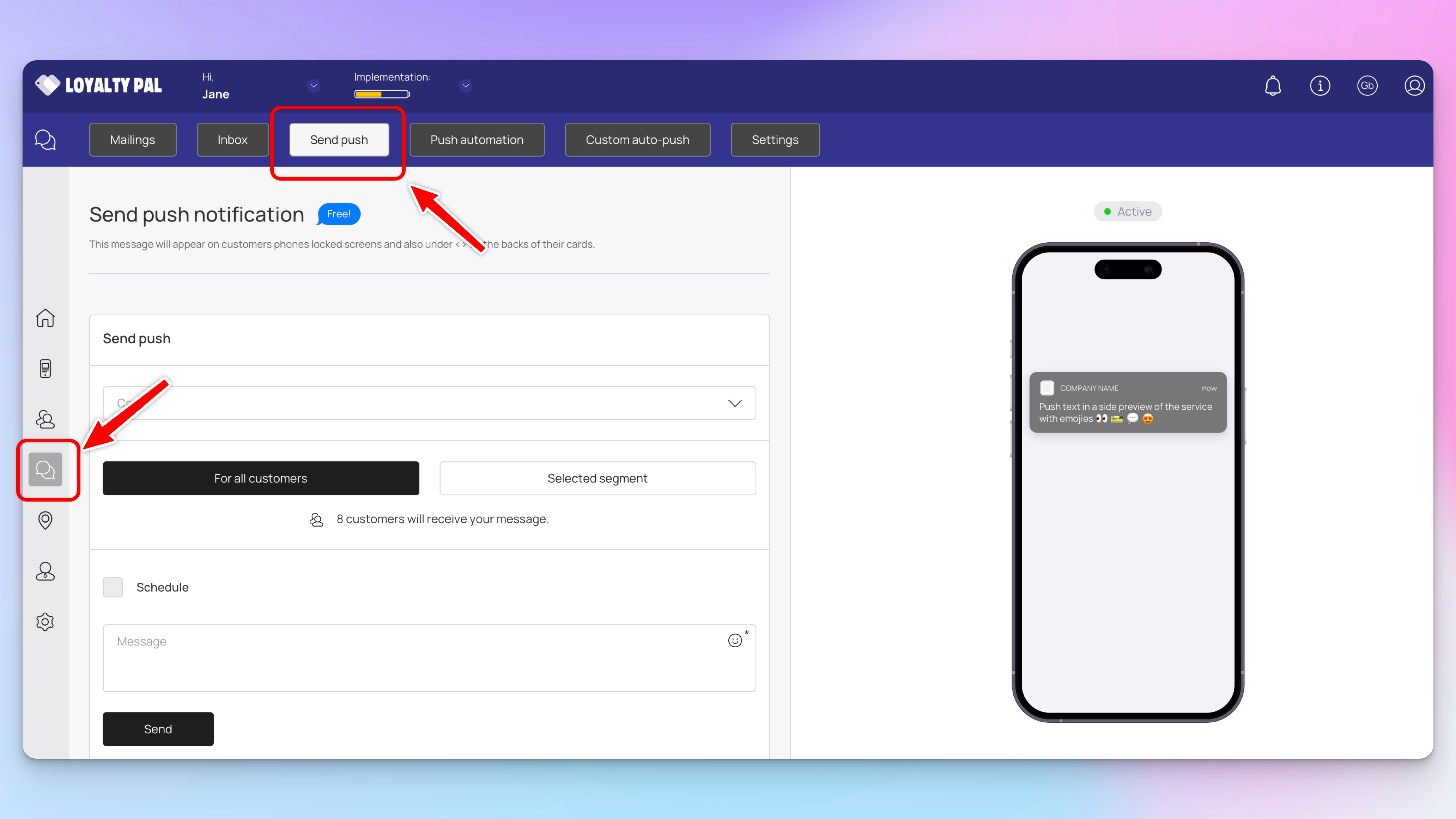
Follow the above-mentioned workflow to land on the Send Push tab.
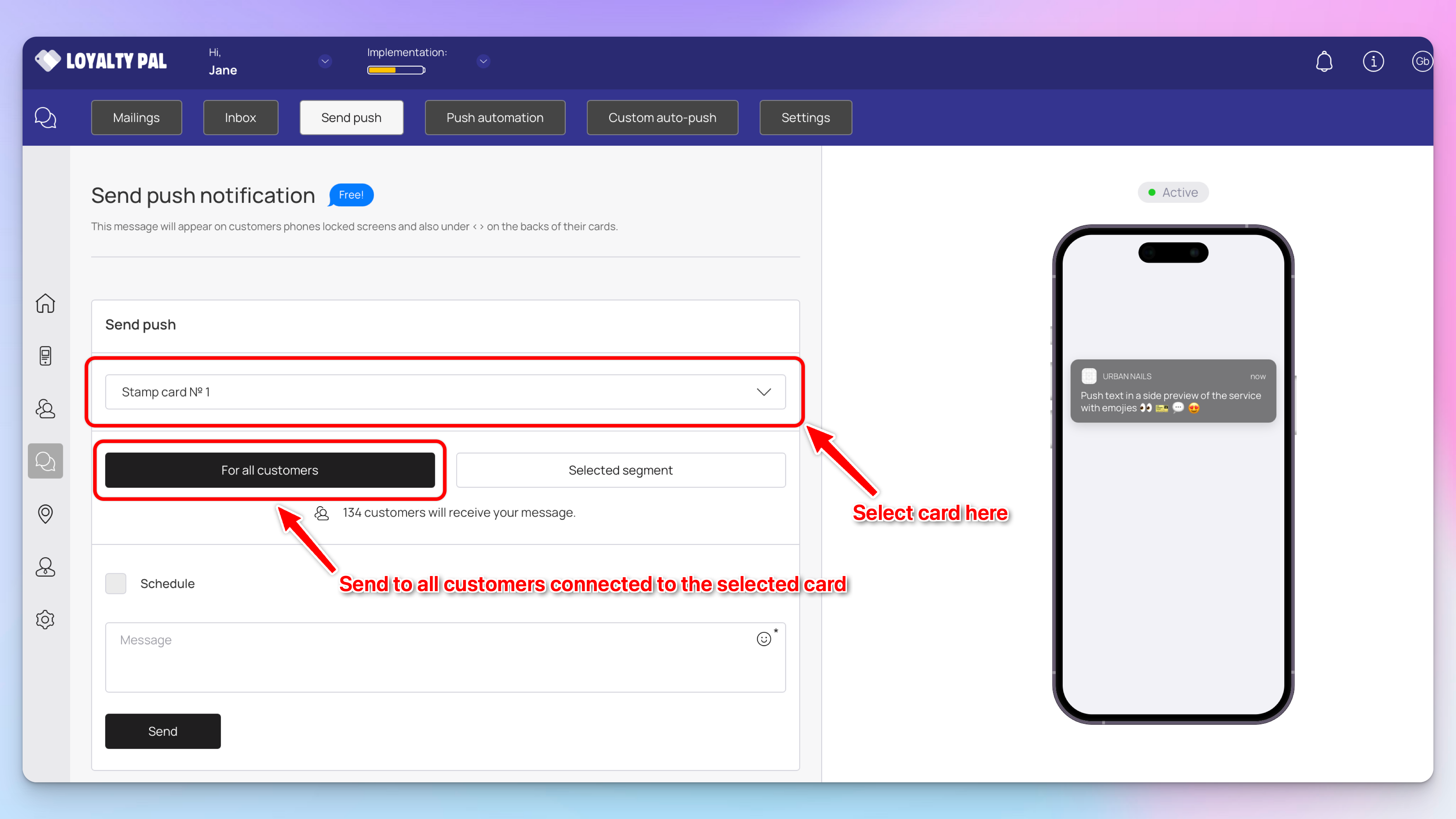
From the Card dropdown under Send Push heading, choose the card you want to send push notifications for. All the created cards are populated in this dropdown.
By default, the For All Customers option is selected. It means that the push notifications will be sent to all customers having the selected card.
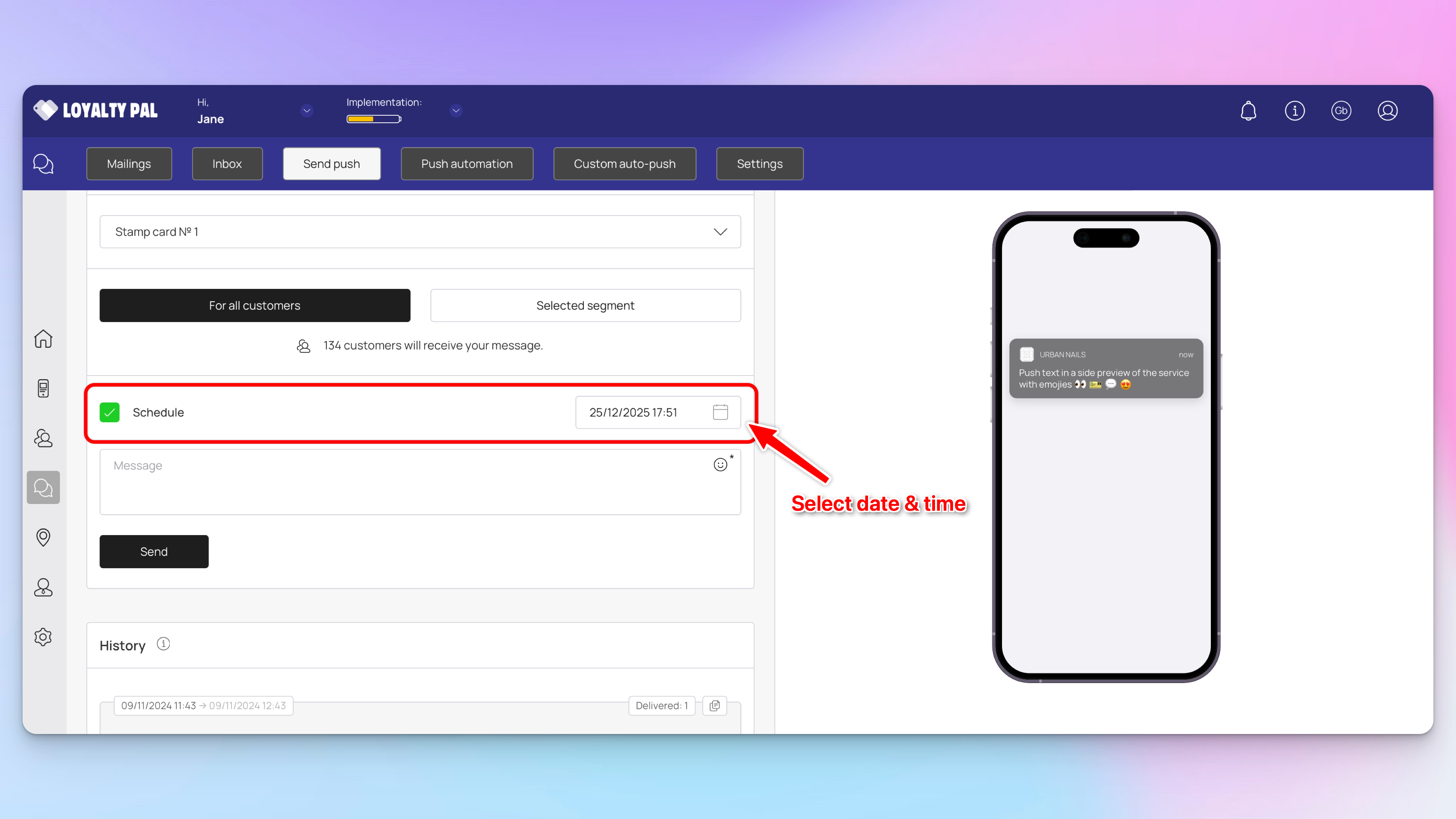
If you want to schedule a push notification, mark the Schedule checkbox.
This reveals a date/time selector on the right side. You can choose the date and time at which you want the scheduled push notification to be sent.
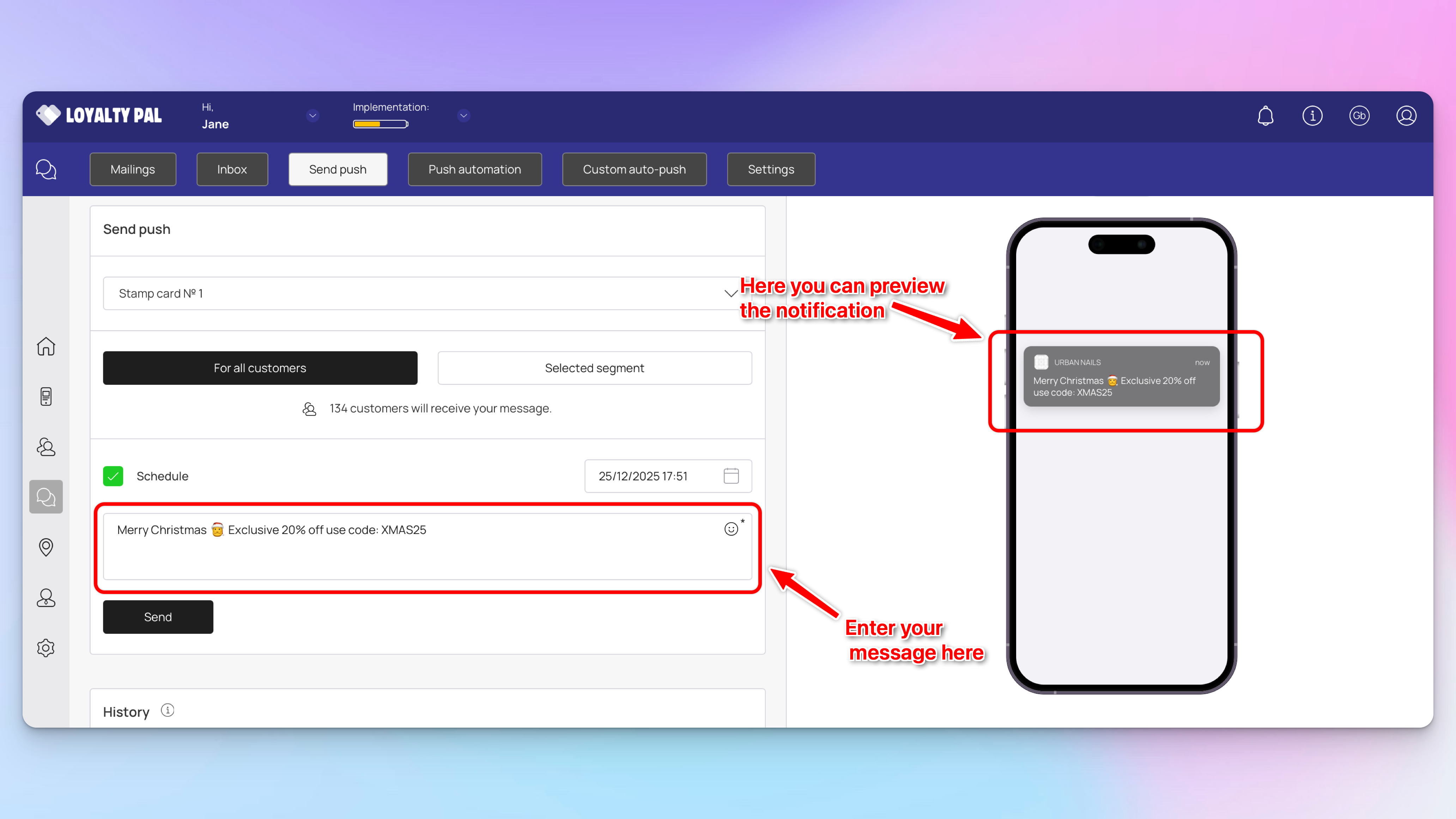
Enter the message you want to send via the push notification using the Message textbox. You can also include emojis by clicking the smiley icon.
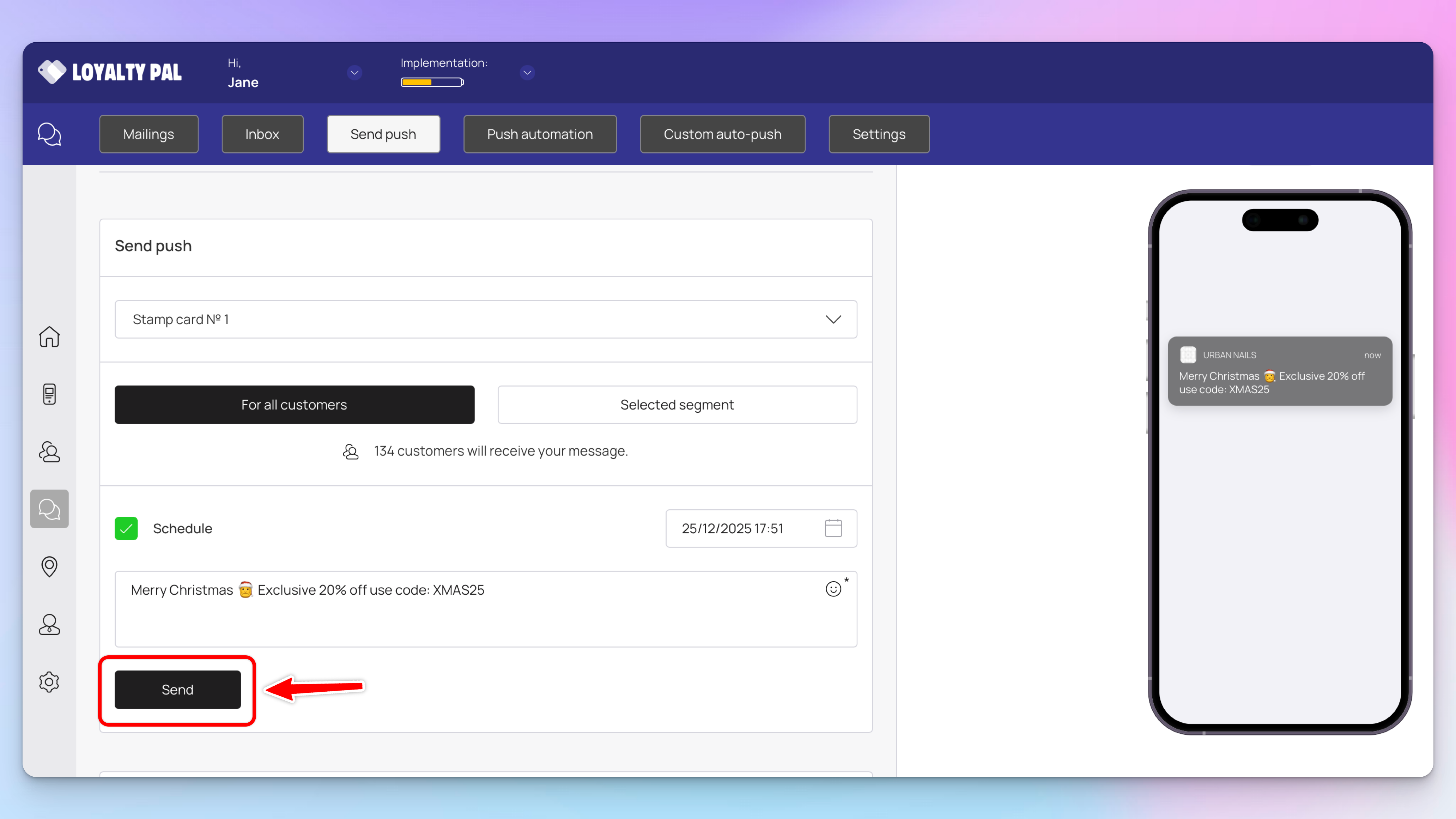
Once happy with the notification, click the Send button.
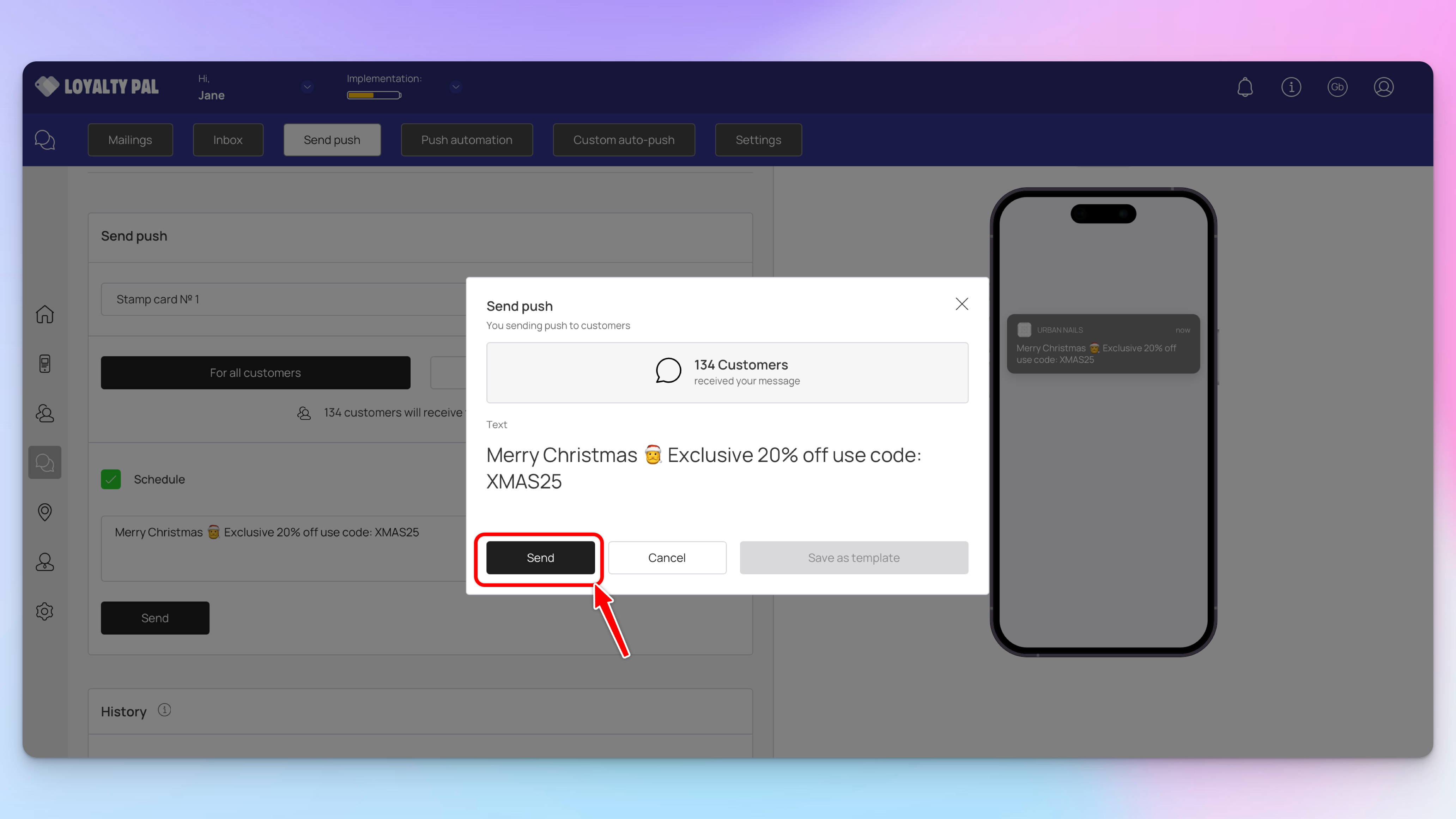
This opens the Send Push popup with the selections you made displayed to you for review. To confirm, click the Send button.
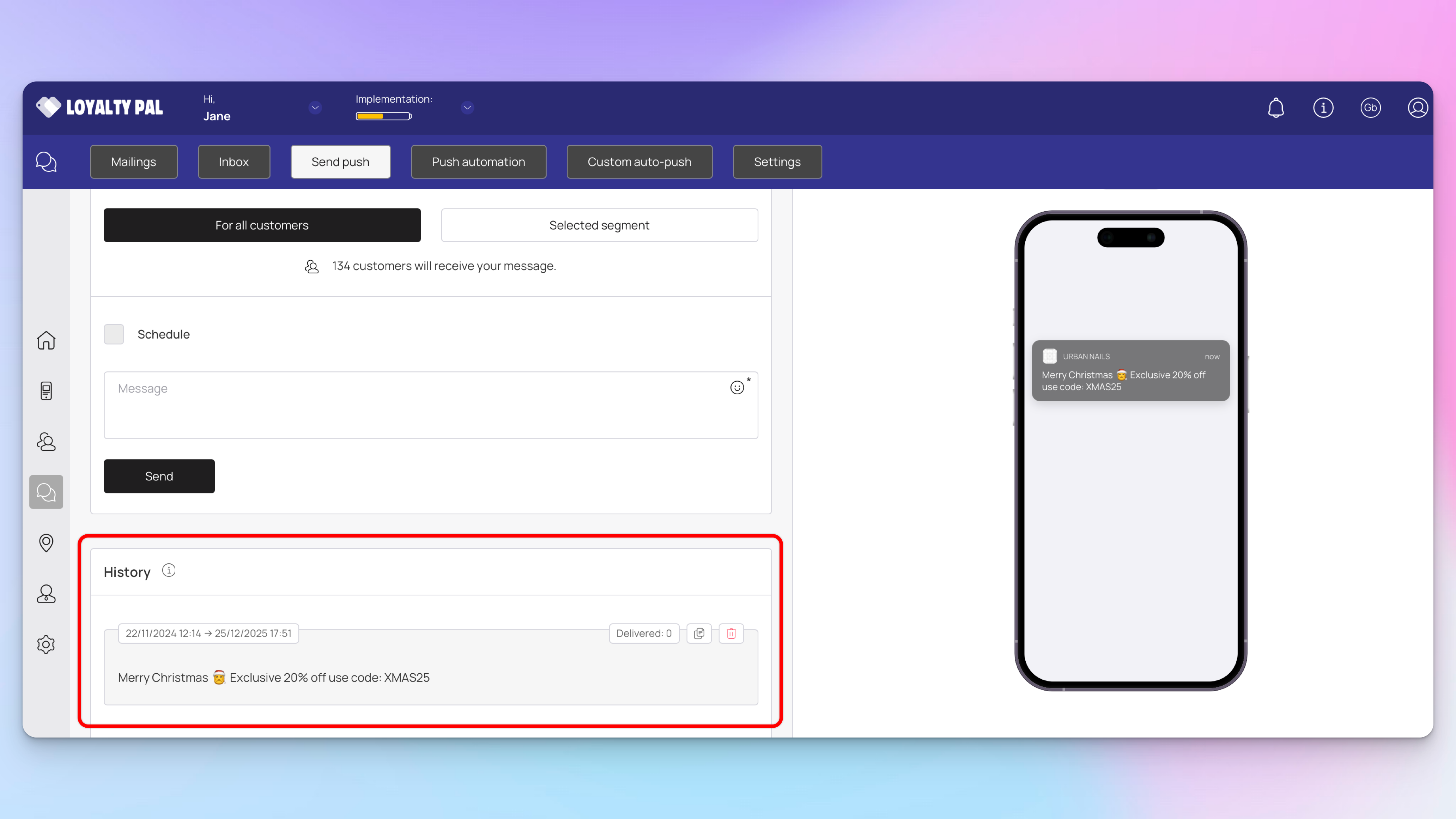
This schedules the push notification and it is displayed in the History log.
Sending Push Notifications to Specific Customer Segments
Learn how you can send push notification message to a specific customer segments connected to a specific card.
LoyaltyPal > Left-Hand Menu (mailings) > Send Push
Follow the above-mentioned workflow to land on the Send Push tab.
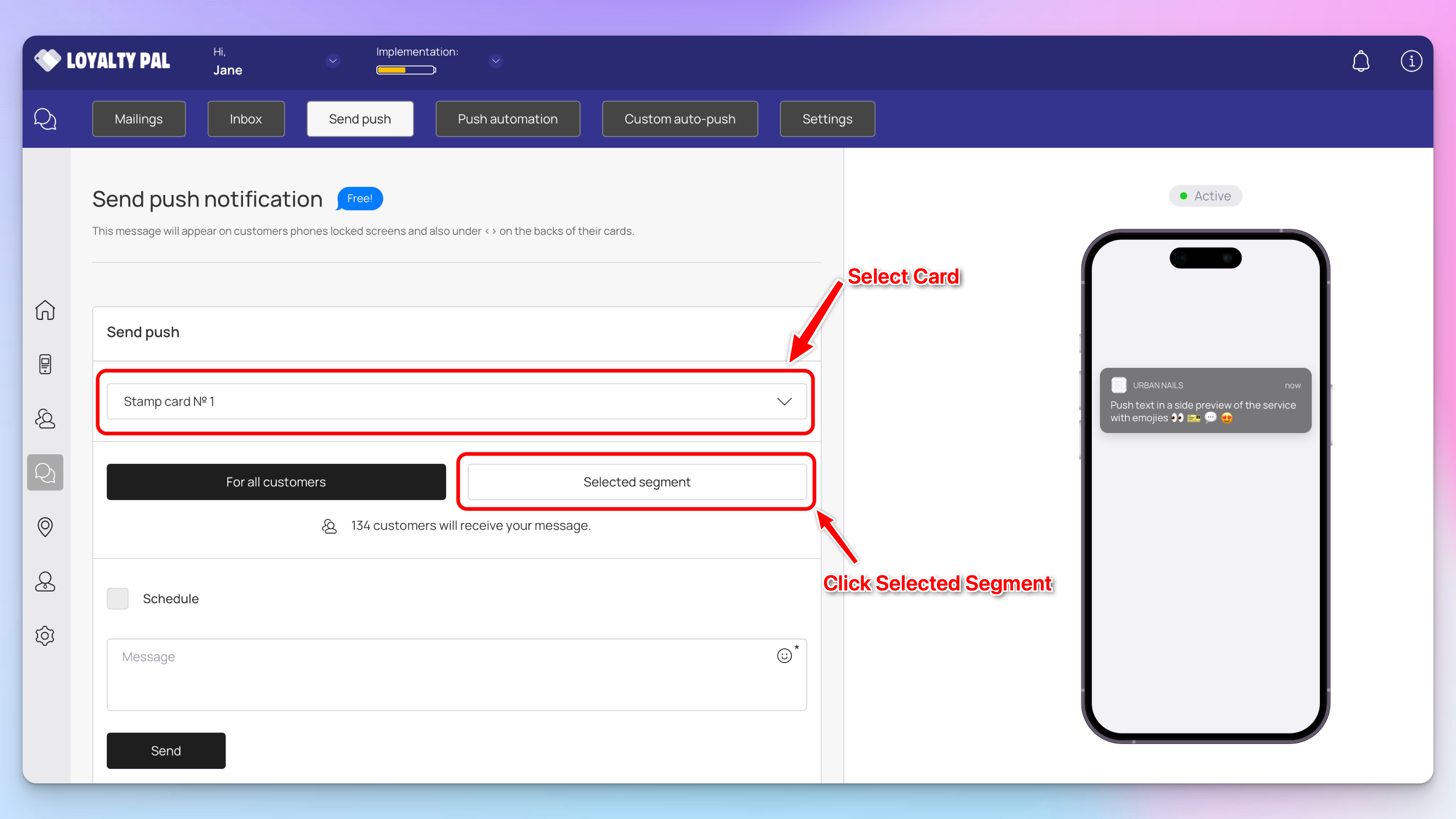
From the Card dropdown under Send Push heading, choose the card you want to send push notifications for. All the created cards are populated in this dropdown.
If you want to send push notifications to selective customers, click the Selected Segment button.
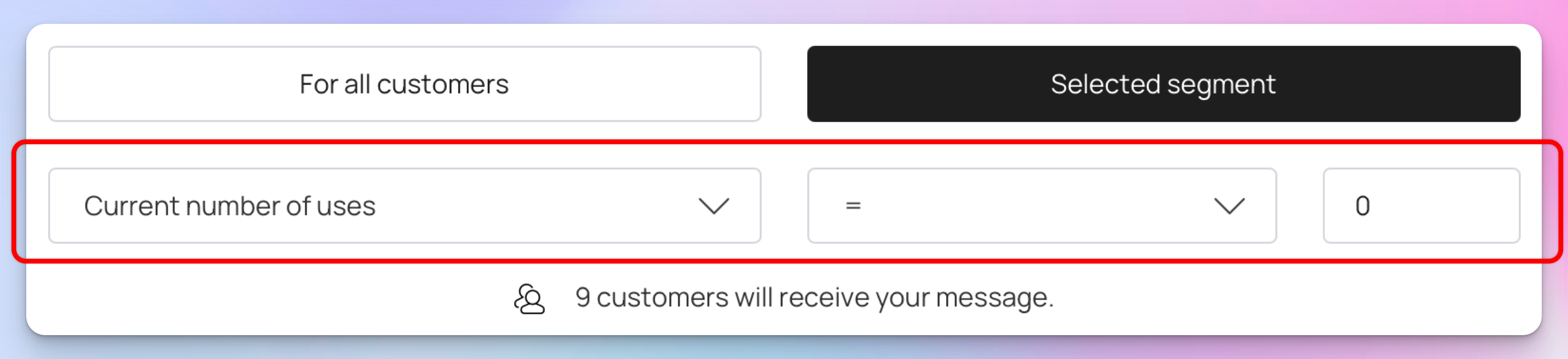
This reveals more options from where you can select a specific condition to define the segment you want to send push notifications to.
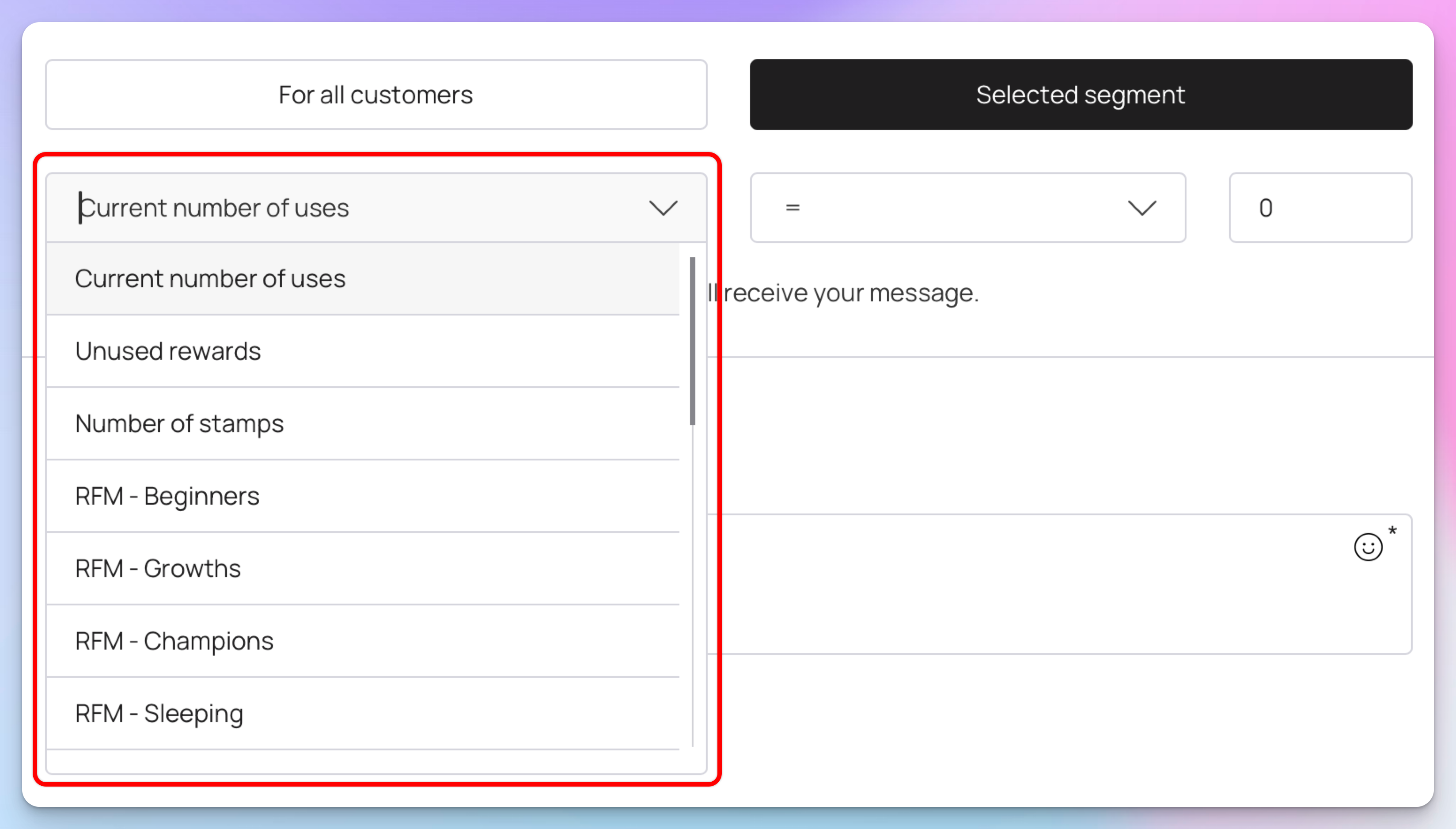
The first dropdown options allows you to choose the conditions, there is a number of conditions you can choose from including: Current number of uses, unused rewards, number of stamps, RFM options and more.
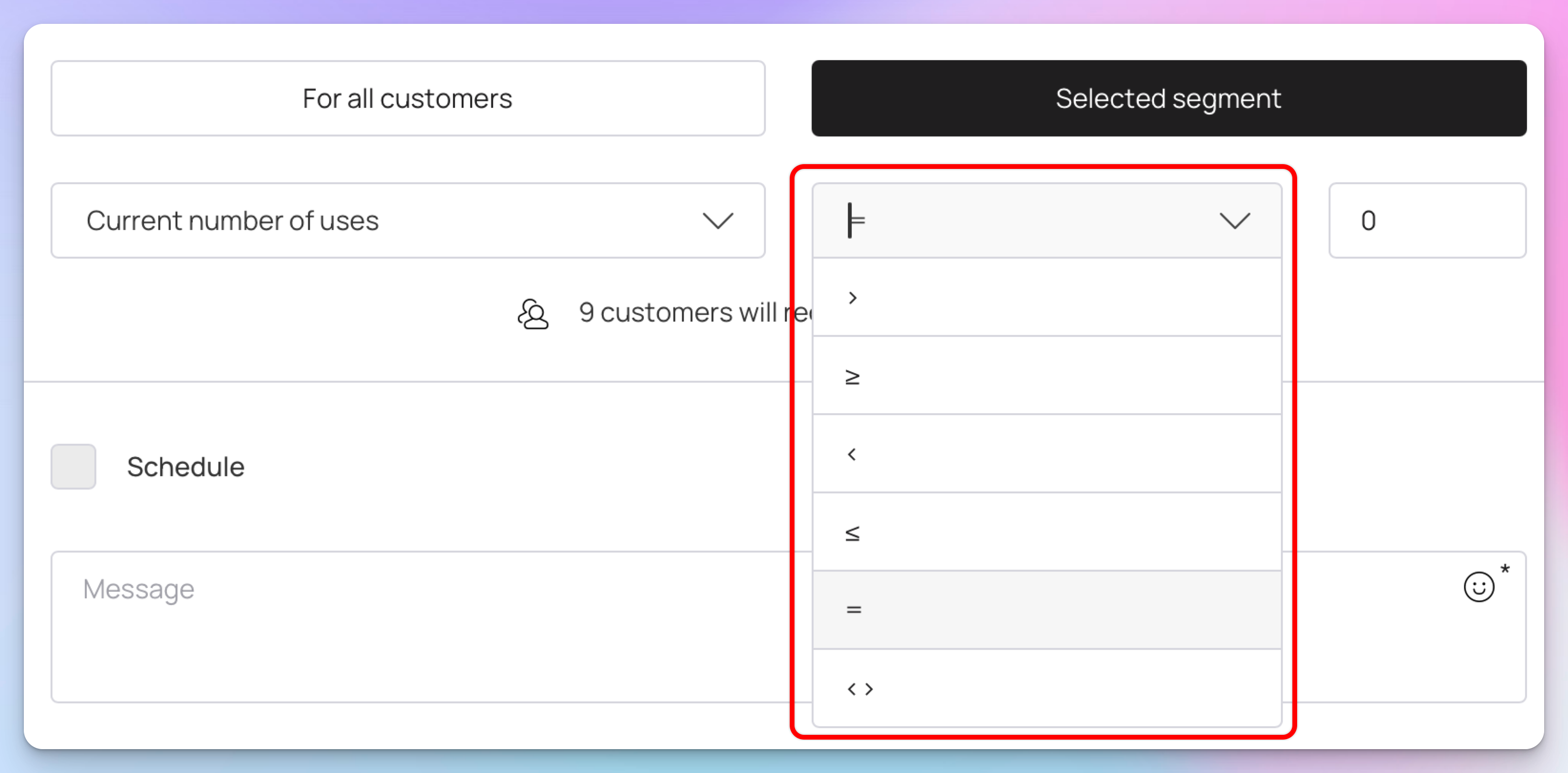
The next dropdown lets you choose the operator on which you want to define the condition.
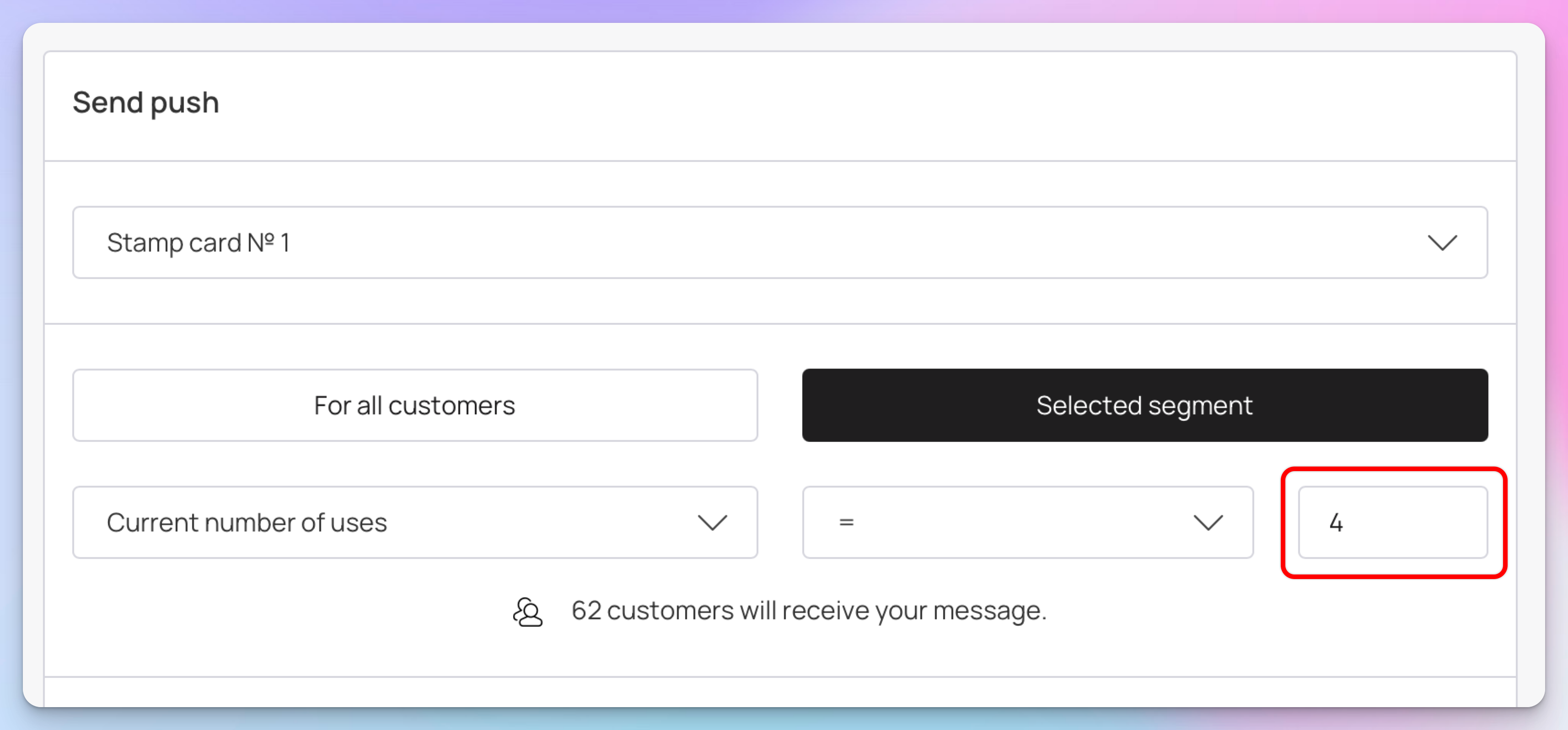
At the end is the count field. Here, you can define the count of the defined condition. For instance, if you enter 4 in this field, it means that push notifications will be sent to the customers who have used the selected card exactly 4 times. Moreover, the number of customers falling in the defined criteria is also displayed below the dropdowns.

If you want to schedule a push notification, mark the Schedule checkbox.
This reveals a date/time selector on the right side. You can choose the date and time at which you want the scheduled push notification to be sent.
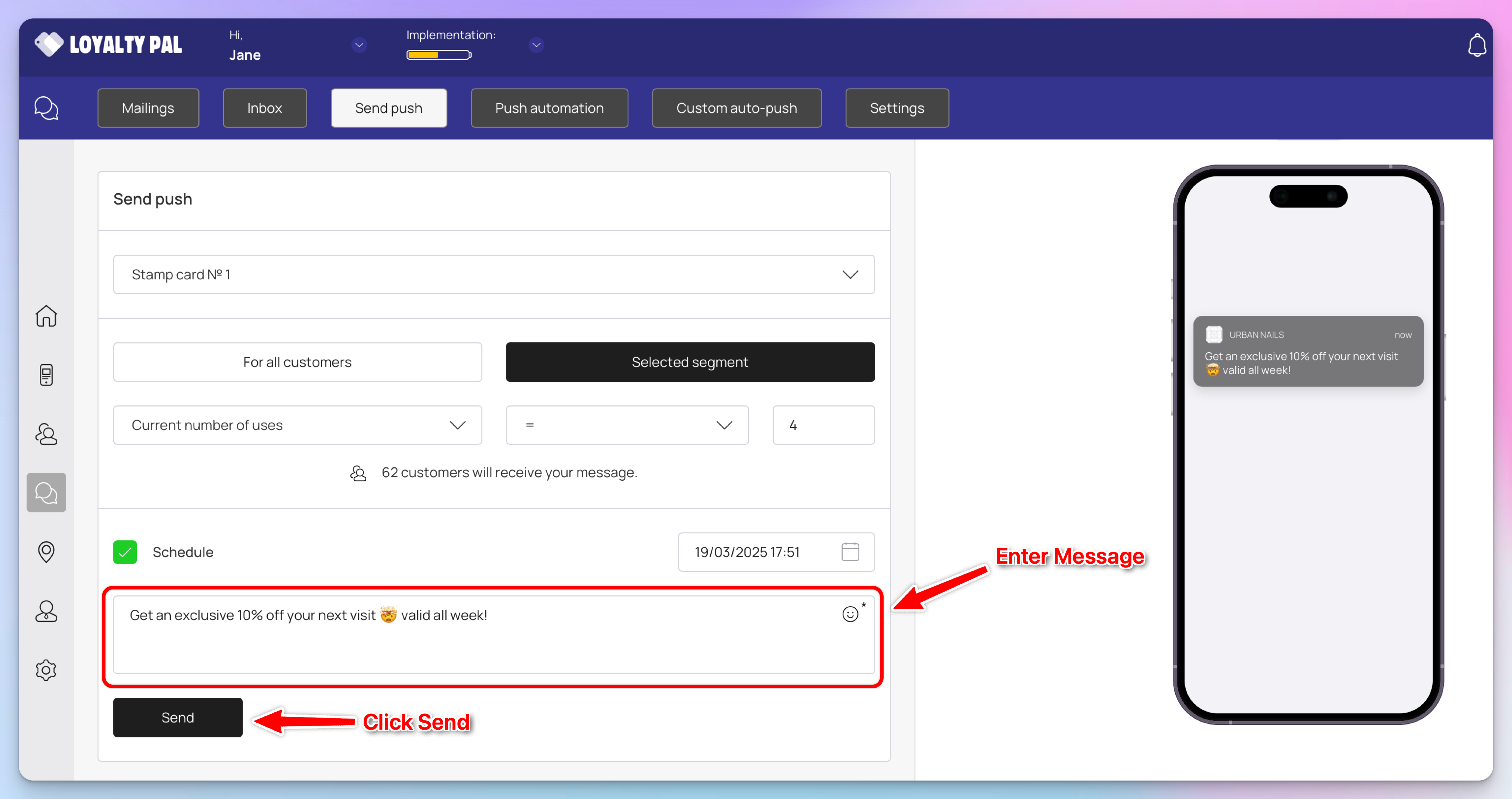
Enter the message you want to send via the push notification using the Message textbox. You can also include emojis by clicking the smiley icon.
Once happy with the notification, click the Send button.
Sending Push Notifications to an Individual Customer
Learn how you can send push notification message to an individual customer.
LoyaltyPal > Left-Hand Menu (customers) > Select customer
Follow the above-mentioned workflow to land on customer profile page.
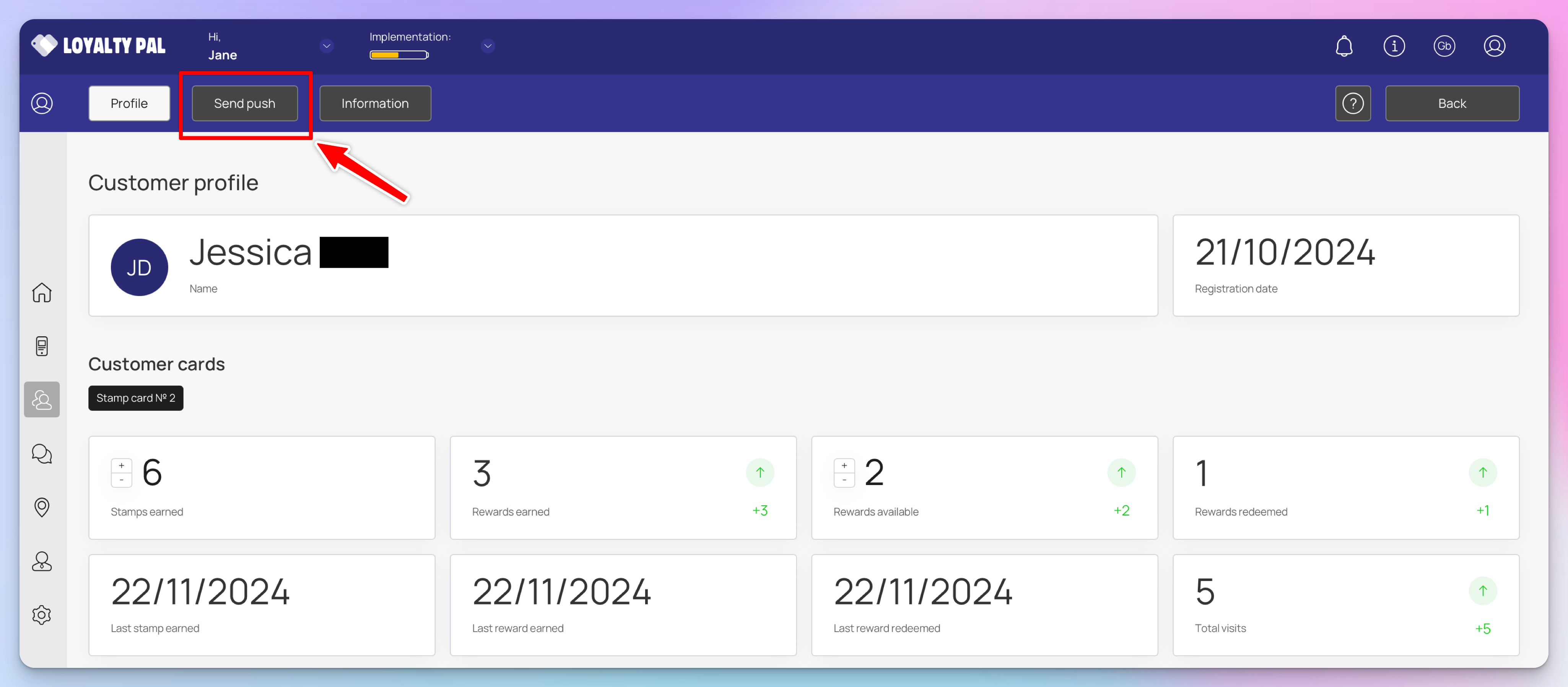
From the customer profile page select Send push
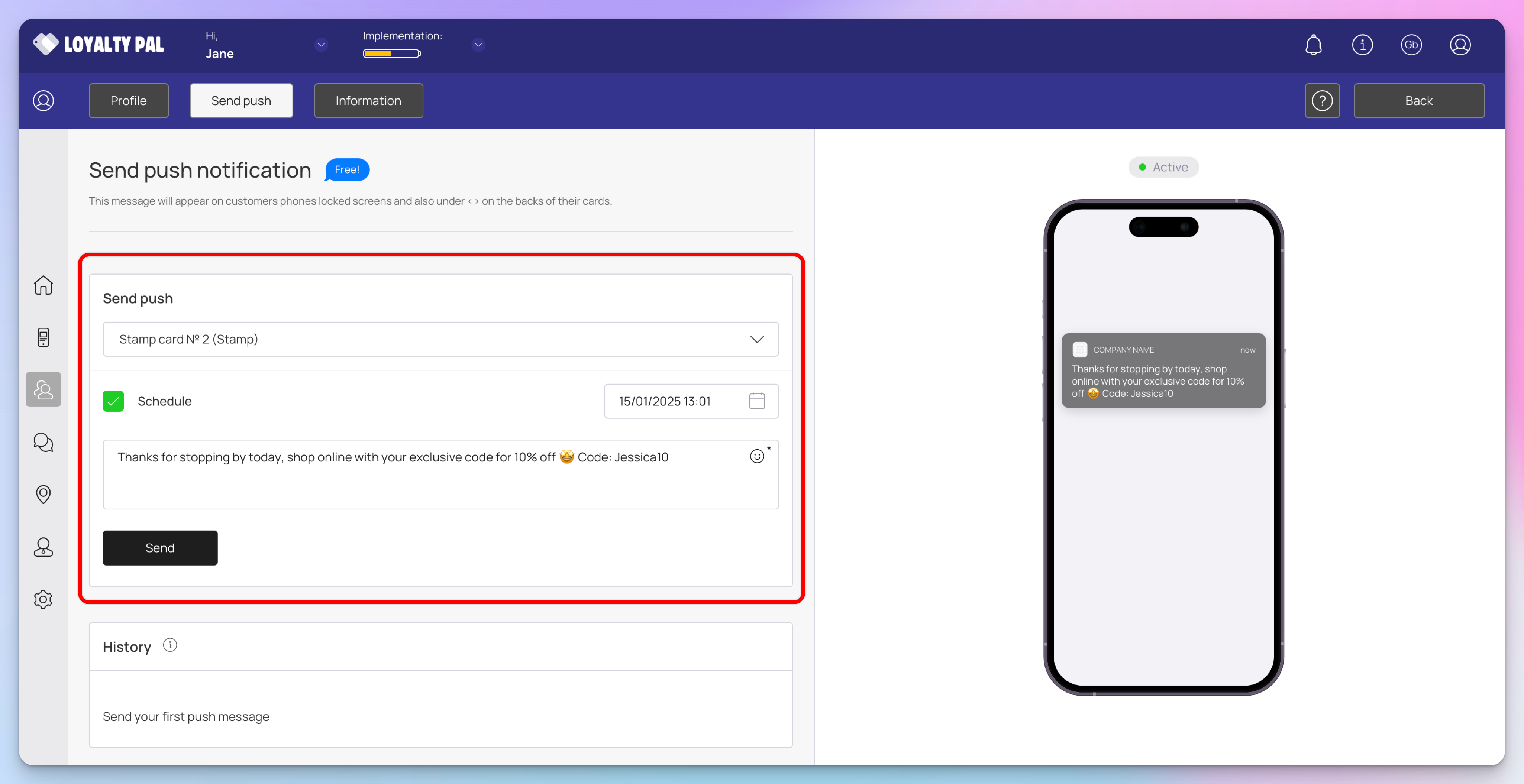
If you want to schedule the push notification, mark the Schedule checkbox.
This reveals a date/time selector on the right side. You can choose the date and time at which you want the scheduled push notification to be sent.
Enter the message you want to send via the push notification using the Message textbox. You can also include emojis by clicking the smiley icon.
Once happy with the notification, click the Send button.